
Lists allow you to group items in your collection together and are free-form, i.e. you can group items however you like.
Creating Lists
You can find the List Management by going to My Stuff > List Management

In List Management you can create, edit, mark as private, spotlight lists in your showcase, add a List Folder (this will show in your Showcase if you have Folder View Enabled - learn more about that here) and a list banner (this will not show in Folder View if you have it enabled, but will show in the default view at the top of your Showcase when clicking on your desired list), and can delete a list.
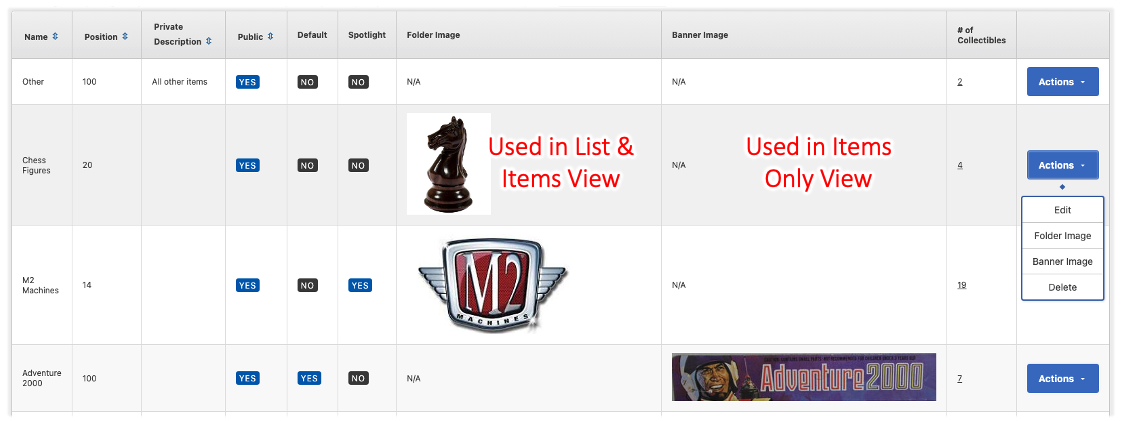
To create a new list, click New List on the top right

You can then customize the List -
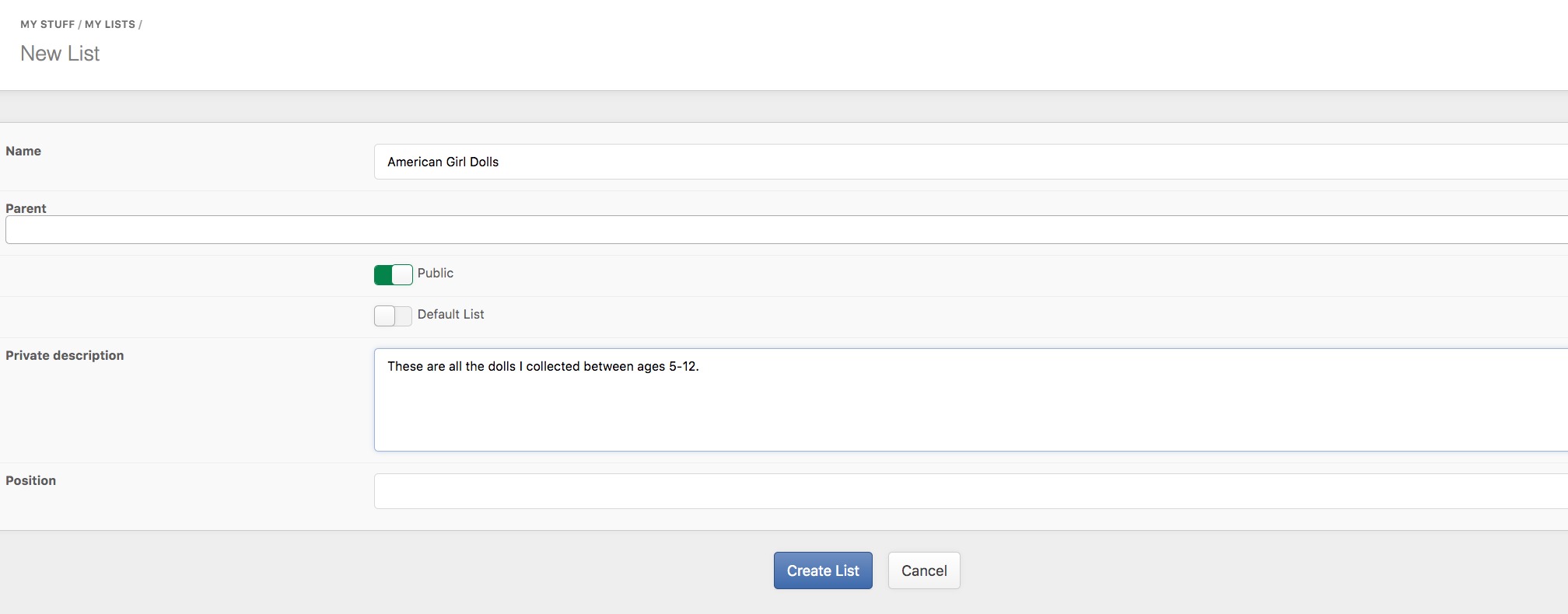
- Parent: Will make this list show under the parent list in Folder View
- Public: Unclicking that marks the List as private
- Default List: Clicking that means newly added Collectibles to your Collection will automatically be added to that list
- Private Description: Something to help you identify what you add in that list
- Position: Sorts Lists in Folder View. Default is -1 which will show the list on top if you have no other lists with a negative position
NOTE: Our Default view in your Showcase is to show Items. If you want to activate the Folder view click here (Folder view is a Premium feature)
Adding Collectibles to your Lists
You can add items to your lists when you first add them to your Collection (using the Long Form) or when editing an item or from Collection Management using the Actions button
If you want to add a lot of Items at the same you can use the Bulk Actions feature in Collection Management -

You can find items in your Collection that are not yet in any List by using the "None" option in the List Filter on the right-hand side -

Sharing Lists
Just select the List you want to share, it will show as underlined as here in this example -

Copy the URL and send it to the party you want to share with (or post it in a post or document).